
Dashboard & Events
Home dashboard, events list, event overview, metrics, and quick actions.
Dashboard
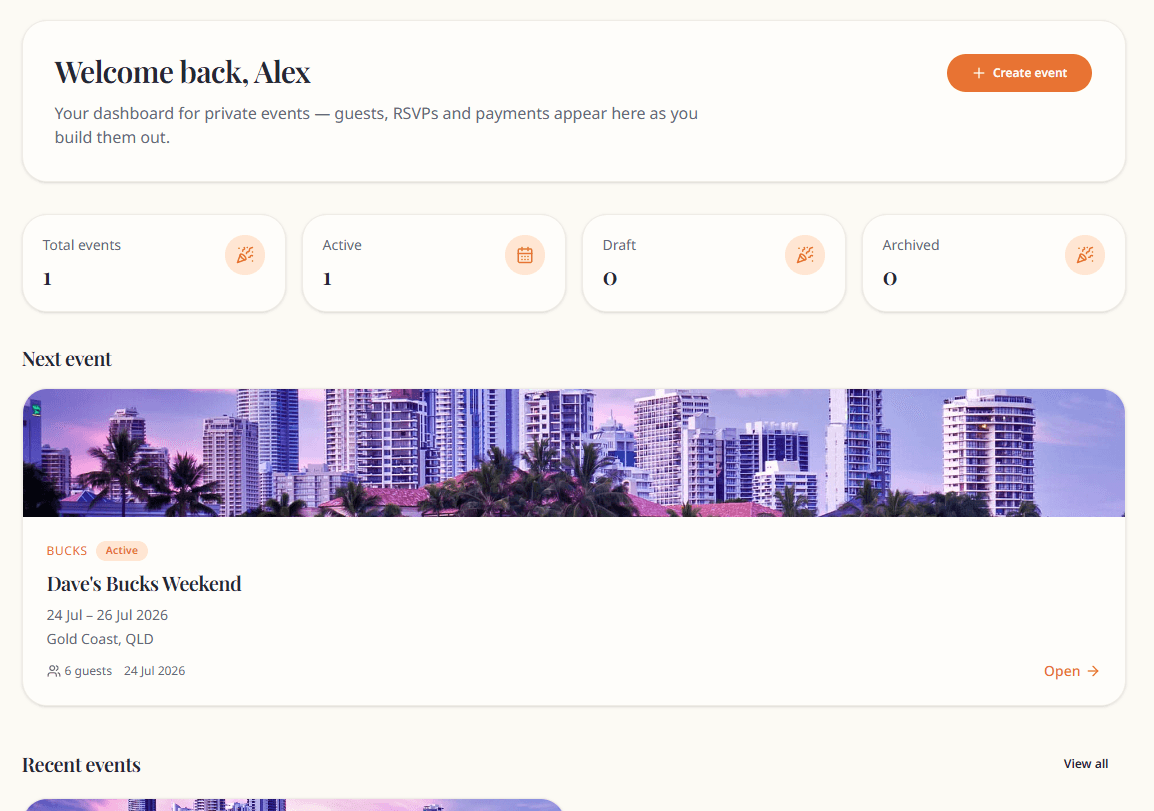
After login you land on Dashboard (/).
- Welcome message with your name
- Stat cards: Total events, Active, Draft, Archived
- Next event — upcoming Active event by start date
- Recent events — quick links to event overviews
- Create event button
Events list
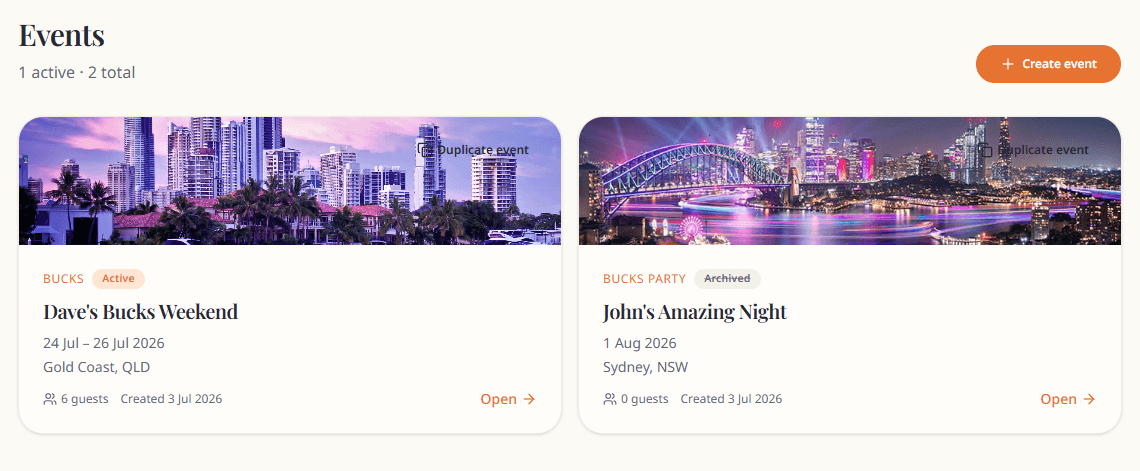
Events (/events) shows all events including archived.
- Each card shows name, type, dates, location, guest count, cover image, and status badge
- Duplicate event button on each card
- Subtitle shows active and total event counts
Event overview
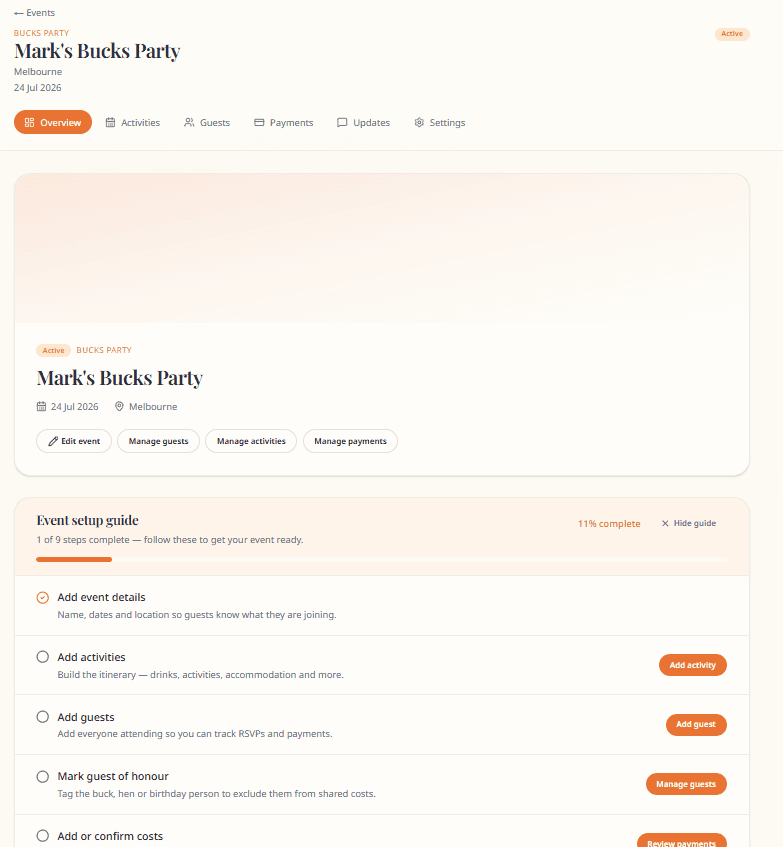
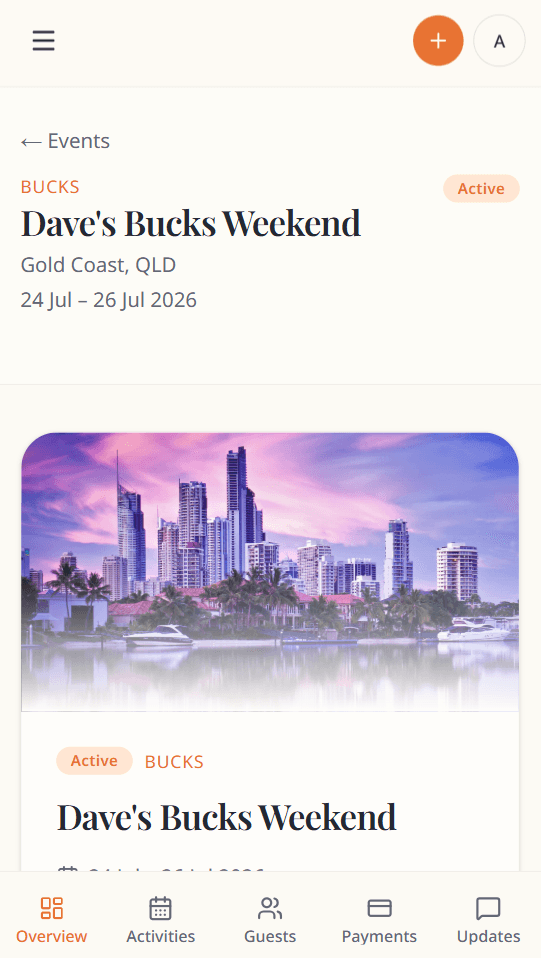
The Overview (/events/{id}) is your command centre for one event.
Header
- Event cover, name, dates, location, status badge
- Edit event → Settings
Setup guide
Nine-step checklist — see Setup checklist. Dismiss with Hide guide.
Warnings
Contextual banners for missing payment details, guests, invites, RSVPs, or payment review.
Metrics
At-a-glance counts for guests, activities, RSVPs, payments, photos, and announcements.
Sections
| Section | Shows |
|---|---|
| Upcoming activities | Timeline preview + Send RSVP reminders |
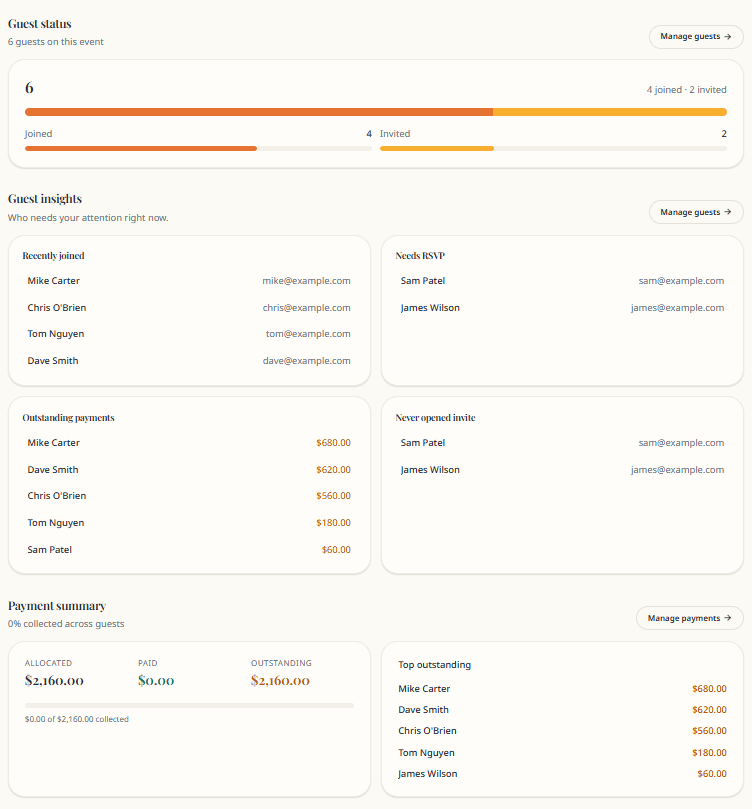
| Guest status | Invited / Joined / Declined breakdown |
| Guest insights | Recently joined, needing RSVP, outstanding payments, never opened |
| Payment summary | Totals and top outstanding guests |
| Recent announcements | Feed preview |
| Recent photos | Gallery preview |
| Quick actions | Add activity, guest, update, payment, photo |
Quick actions and the setup guide are hidden when the event is Archived.
Mobile navigation
On phones, a bottom bar gives quick access to Overview, Activities, Guests, Payments, and Updates. Open Settings from the overview or event header.
Create event
Events → Create event or dashboard Create event.
Fields: name, type, location, start/end dates, description. New events default to Active.
Send RSVP reminders
From Overview or Activities when you have active activities:
- Send RSVP reminders — emails guests who have not responded to activities
Payment reminders are sent from the Payments page.