
Getting Started
Invite Guests
Send invite emails or copy private links — guests are never invited automatically when added.
Important
Adding a guest does not send an invite. You choose when to share the link — by email from Buxmate or by copying the link into SMS, WhatsApp, or group chat.
Per-guest invite
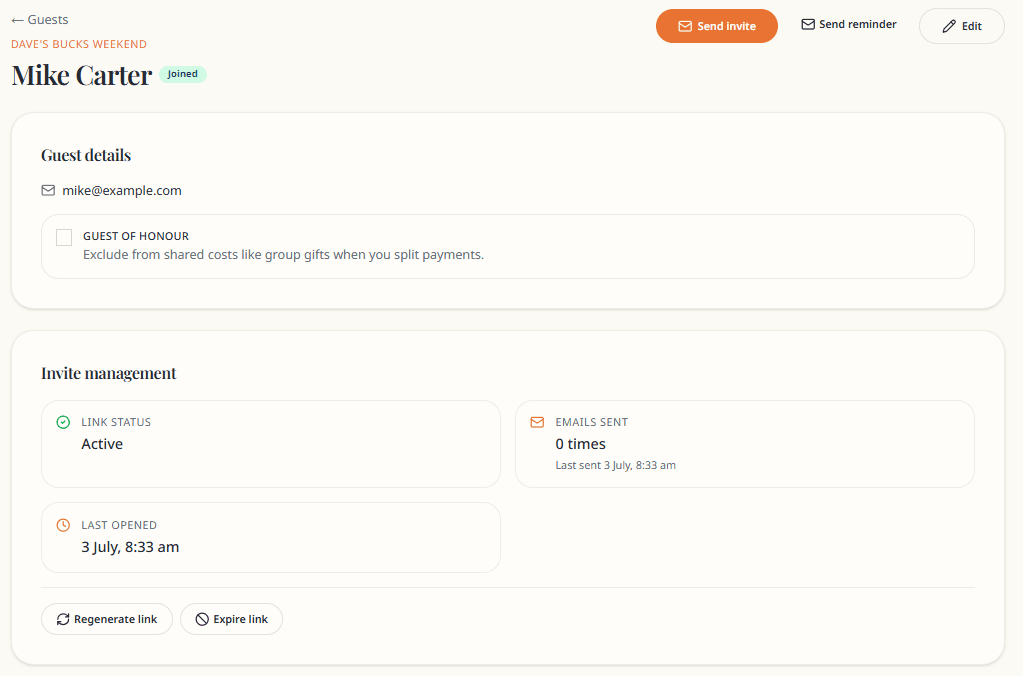
- Open Guests and click a guest's name
- On their profile you will see:
- Private invite link — full URL to
/join/... - Invite code — short 8-character code (the long link still works)
- Private invite link — full URL to
- Use one of:
- Send invite — sends a Buxmate email with the link
- Copy link — paste anywhere
- Copy message — pre-written SMS-style text with the link
Bulk send
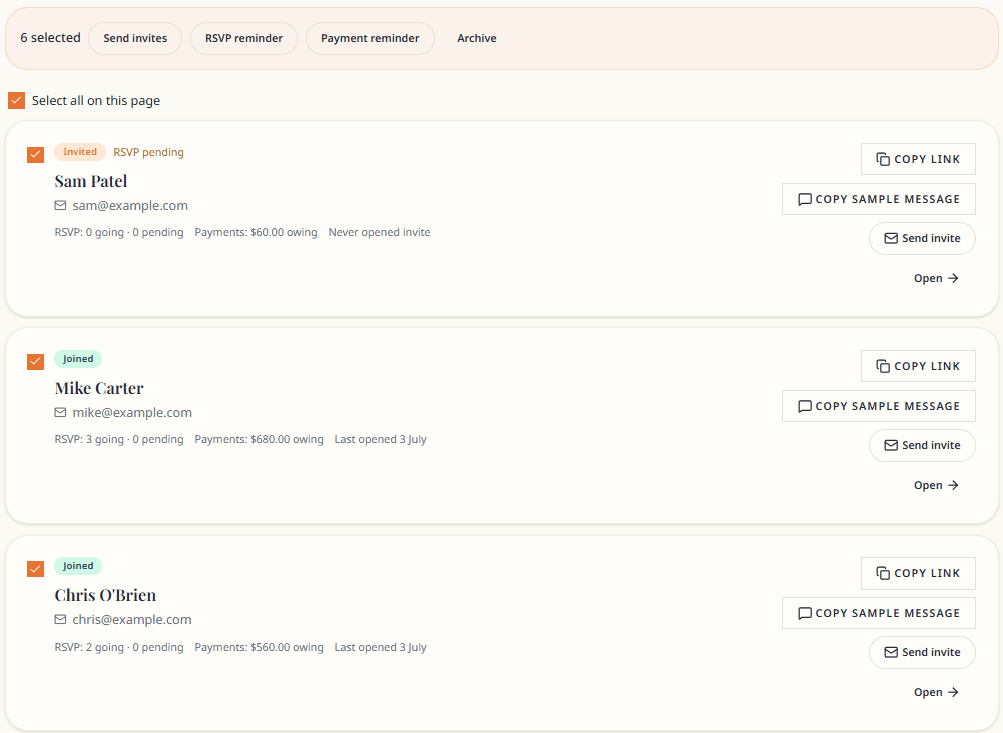
- On the Guests page, select multiple guests (checkboxes)
- Choose Send invites from the bulk actions bar
- Confirm
Only guests with an email on file can receive Buxmate emails. Others need the link copied manually.
What guests see
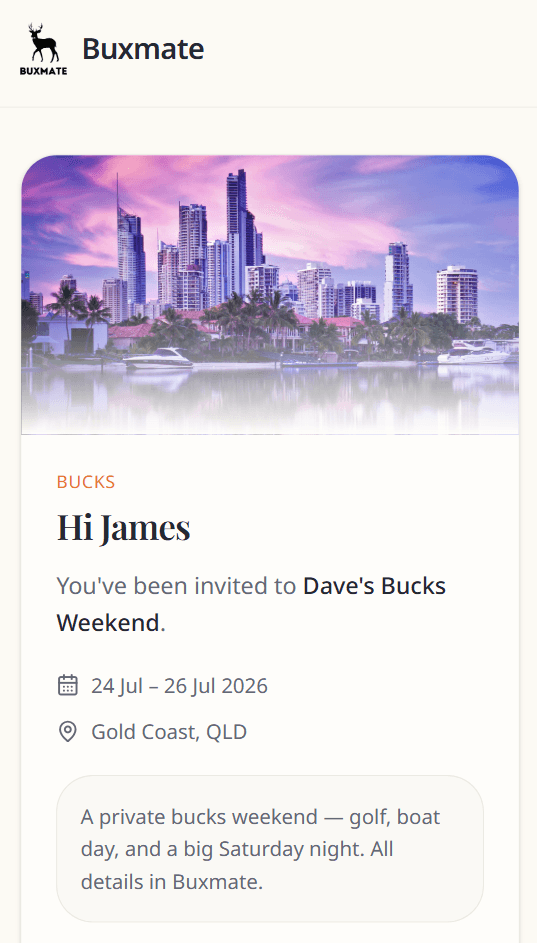
- They open the invite link
- A landing page shows the event name, dates, and location
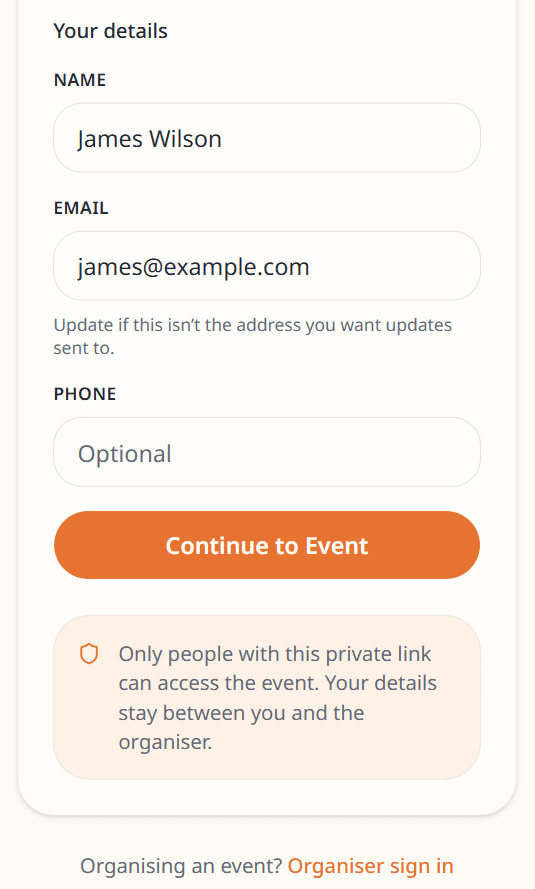
- They confirm name, email, and phone
- They click Continue to event and land on their guest hub at
/e/your-event-slug
Invite link management
From a guest's profile:
| Action | Effect |
|---|---|
| Regenerate link | Old link stops working immediately |
| Expire invite | Link disabled until you reactivate |
| Archive guest | Guest removed from active list; link stops working |
Tracking
Each guest profile shows Emails sent and Last opened (when they last viewed the guest hub).
Tips
- Send invites only when your itinerary and payment details are ready
- Use the setup guide on the event overview to track progress
- Guests can add their email on the join page or guest hub if you did not have one
Next: Guest hub overview (what guests see after joining).